Encore.ts Streaming Chat Example
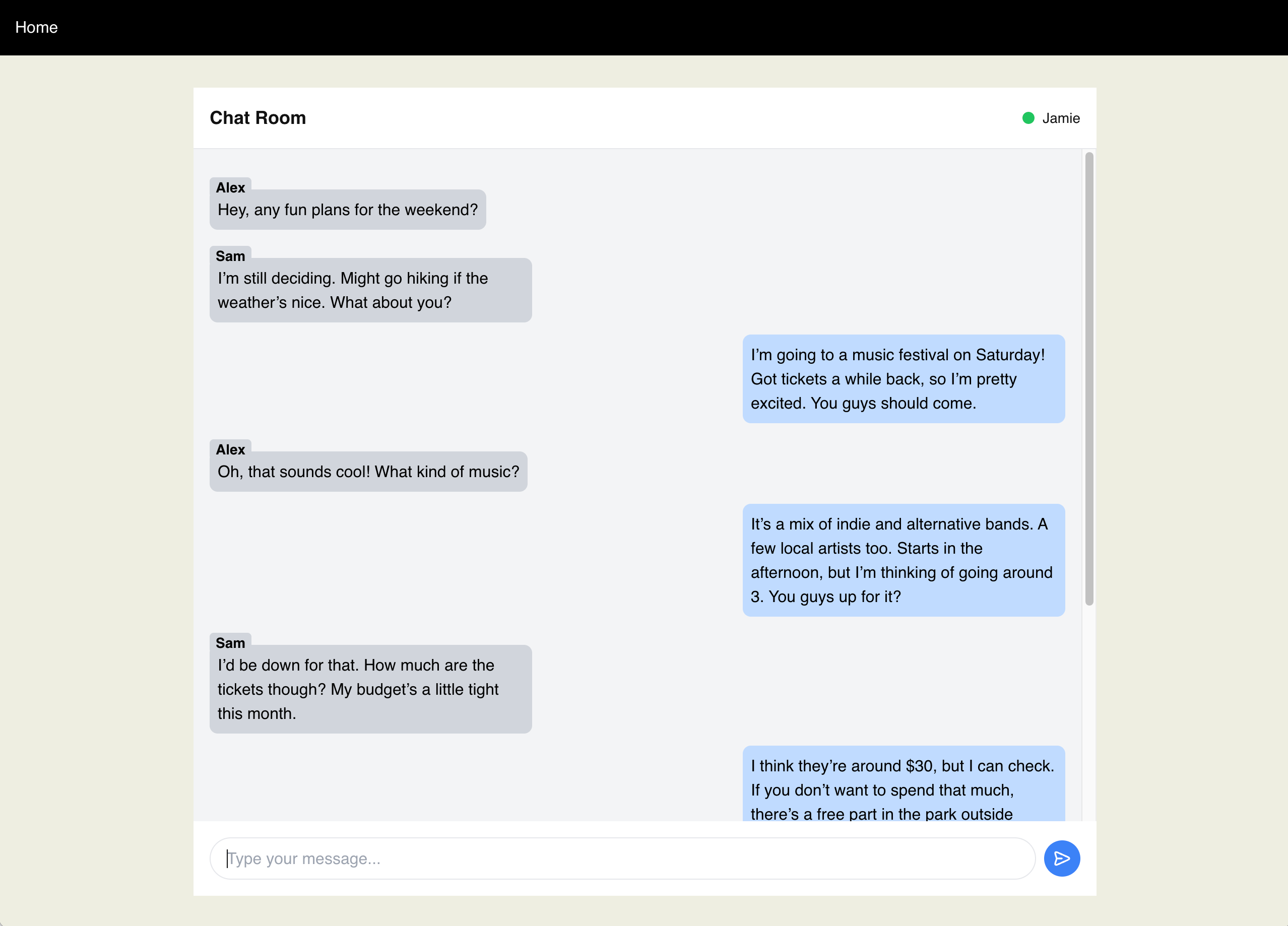
This is an example of how to use the Streaming API in Encore.ts to create a WebSocket stream from a web frontend to a Encore.ts backend.
Learn more in our Streaming API docs
Developing locally
Prerequisite: Installing Encore
If this is the first time you're using Encore, you first need to install the CLI that runs the local development environment. Use the appropriate command for your system:
- macOS:
brew install encoredev/tap/encore - Linux:
curl -L https://encore.dev/install.sh | bash - Windows:
iwr https://encore.dev/install.ps1 | iex
When you have installed Encore, run to clone this example:
encore app create --example=ts/streaming-chat
Running locally
encore run
While encore run is running, open http://localhost:4000/ to view the chat frontend. Open http://localhost:4000/ in multiple tabs to see the chat in action.
You can also access Encore's local developer dashboard on http://localhost:9400/ to view traces, API documentation, and more.
In you change the frontend then run npm run build to build a new frontend in the dist folder.
Testing
encore test
Deployment
Deploy your application to a staging environment in Encore's free development cloud:
git add -A .
git commit -m 'Commit message'
git push encore
Then head over to the Cloud Dashboard to monitor your deployment and find your production URL.
From there you can also connect your own AWS or GCP account to use for deployment.
Now off you go into the clouds!