# Managing database user credentials
Encore Cloud provisions your databases automatically, meaning you don't need to manually create database users. However, in some use cases you need access to the database user credentials, so Encore Cloud makes it simple to view them.
As an application **Admin**, open the [Encore Cloud dashboard](https://app.encore.cloud) and go to the **Infrastructure** page for the relevant environment.
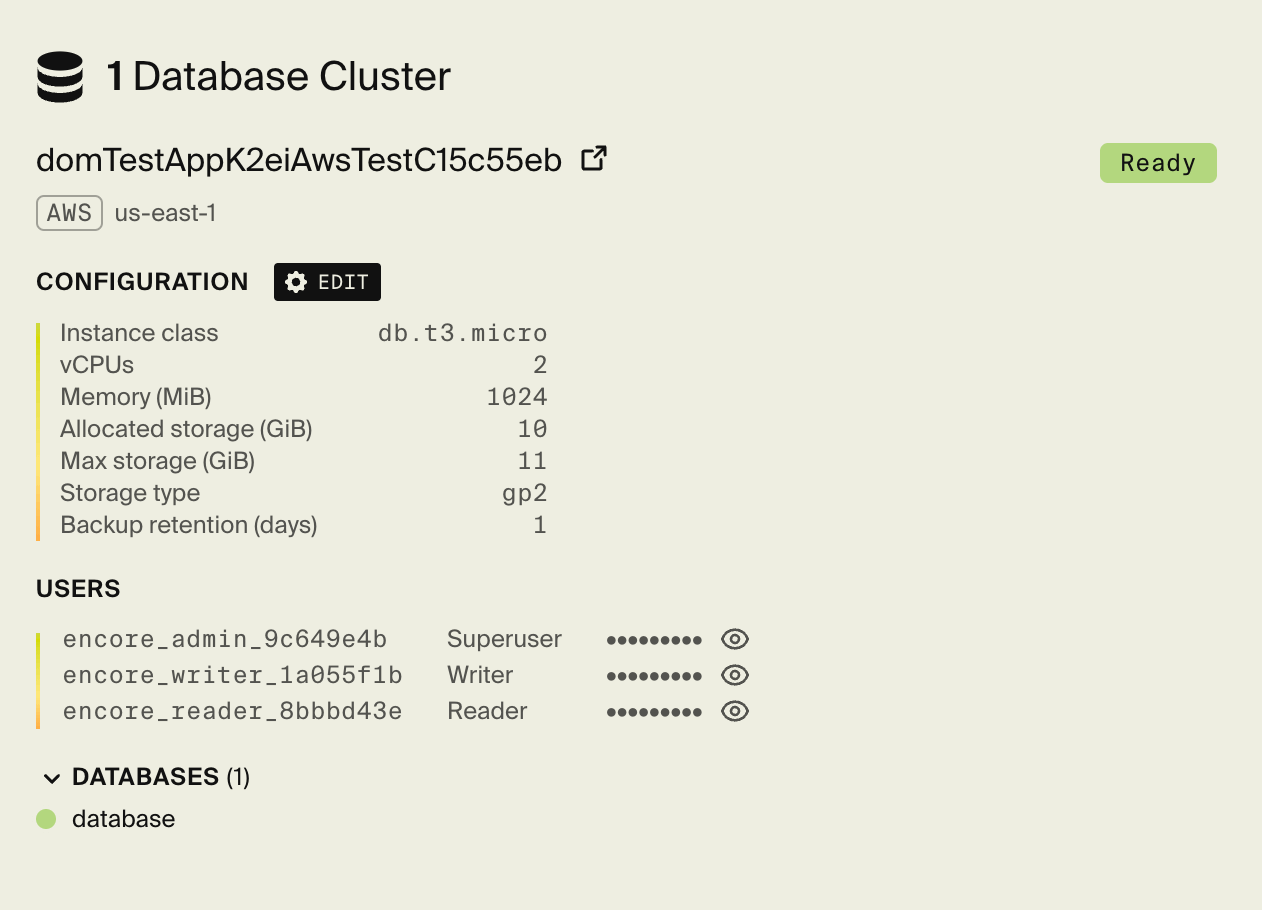
In the section for the relevant **Database Cluster**, you will find a **Users** sub-section which lists your database users. Click on the "eye" icon next to each username to decrypt the password.
Note that databases hosted in [Encore Cloud](/docs/platform/infrastructure/infra#encore-cloud) currently do not expose usernames and passwords.
To connect to an Encore Cloud-hosted database, use [`encore db shell`](/docs/ts/primitives/databases#connecting-to-databases).
`encore db shell` defaults to read-only permissions. Use `--write`, `--admin` and `--superuser` flags to modify which permissions you connect with.
 ## Credential isolation
Encore Cloud provisions unique credentials at multiple levels to ensure proper security isolation:
- Each database instance has its own unique credentials.
- Each container connecting to a database uses a unique credential.
## Credential rotation
To rotate database credentials, open the [Encore Cloud dashboard](https://app.encore.cloud) and navigate to the **Infrastructure** page for the relevant environment. In the database cluster section, use the rotation controls to generate new credentials. Existing connections will be updated automatically on the next deployment.
Do not change or remove the database users created by Encore, as this will prevent Encore Cloud from maintaining and handling connections to the databases in your application.
## Credential isolation
Encore Cloud provisions unique credentials at multiple levels to ensure proper security isolation:
- Each database instance has its own unique credentials.
- Each container connecting to a database uses a unique credential.
## Credential rotation
To rotate database credentials, open the [Encore Cloud dashboard](https://app.encore.cloud) and navigate to the **Infrastructure** page for the relevant environment. In the database cluster section, use the rotation controls to generate new credentials. Existing connections will be updated automatically on the next deployment.
Do not change or remove the database users created by Encore, as this will prevent Encore Cloud from maintaining and handling connections to the databases in your application.