# Preview Environments
> Accelerate development with isolated test environments for each Pull Request
When using [Encore Cloud Pro](https://encore.cloud/pricing), you automatically get ephemeral Preview Environments for each Pull Request.
Preview Environments are free, fully-managed development environments that run on Encore Cloud. They let you test changes without managing infrastructure or incurring cost.
### Self-hosted Preview Environments (Enterprise)
On the Enterprise tier, Preview Environments can also be hosted on your own cloud infrastructure. This is useful when your Preview Environments need network access to private resources, such as shared databases or internal APIs.
For example, on GCP you can isolate all Preview Environments to a single GCP project, so you only need to set up networking and VPC access to your other private resources once and all Preview Environments will automatically have access. [Contact us](https://encore.dev/book) to discuss your requirements.
See the [infra docs](/docs/platform/infrastructure/infra#preview-environments) if you're curious about exactly how Preview Environments are provisioned.
## Using Preview Environments
To use Preview Environments, you first need to [connect your application to GitHub](/docs/platform/integrations/github).
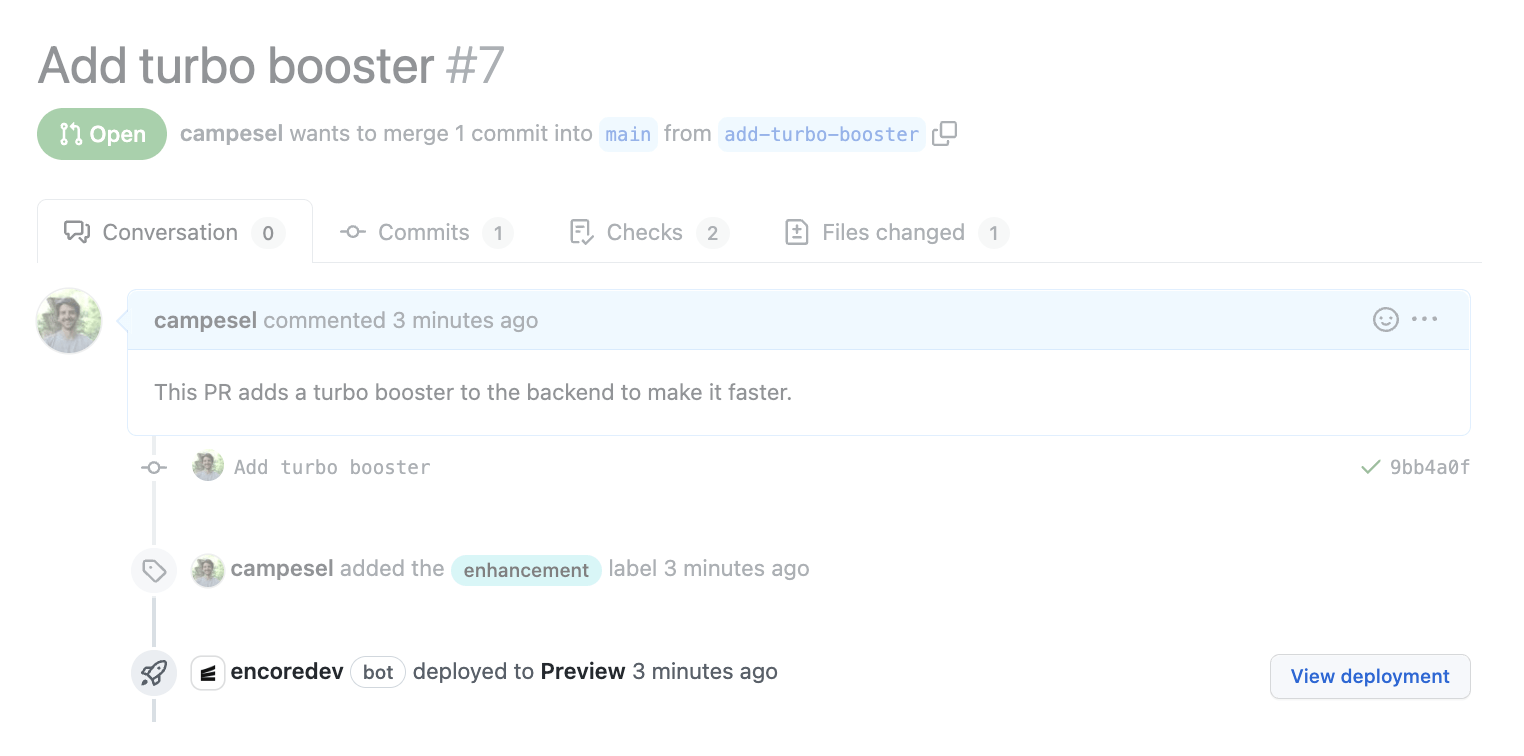
Preview Environments are named after the pull request, for example PR #72 creates a Preview Environment named `pr:72` with the API base url `https://pr72-$APP_ID.encr.app`.
You can also view the environment in the Encore Cloud dashboard, where the url will be `https://app.encore.cloud/$APP_ID/envs/pr:72`.
## Populate databases with test data automatically
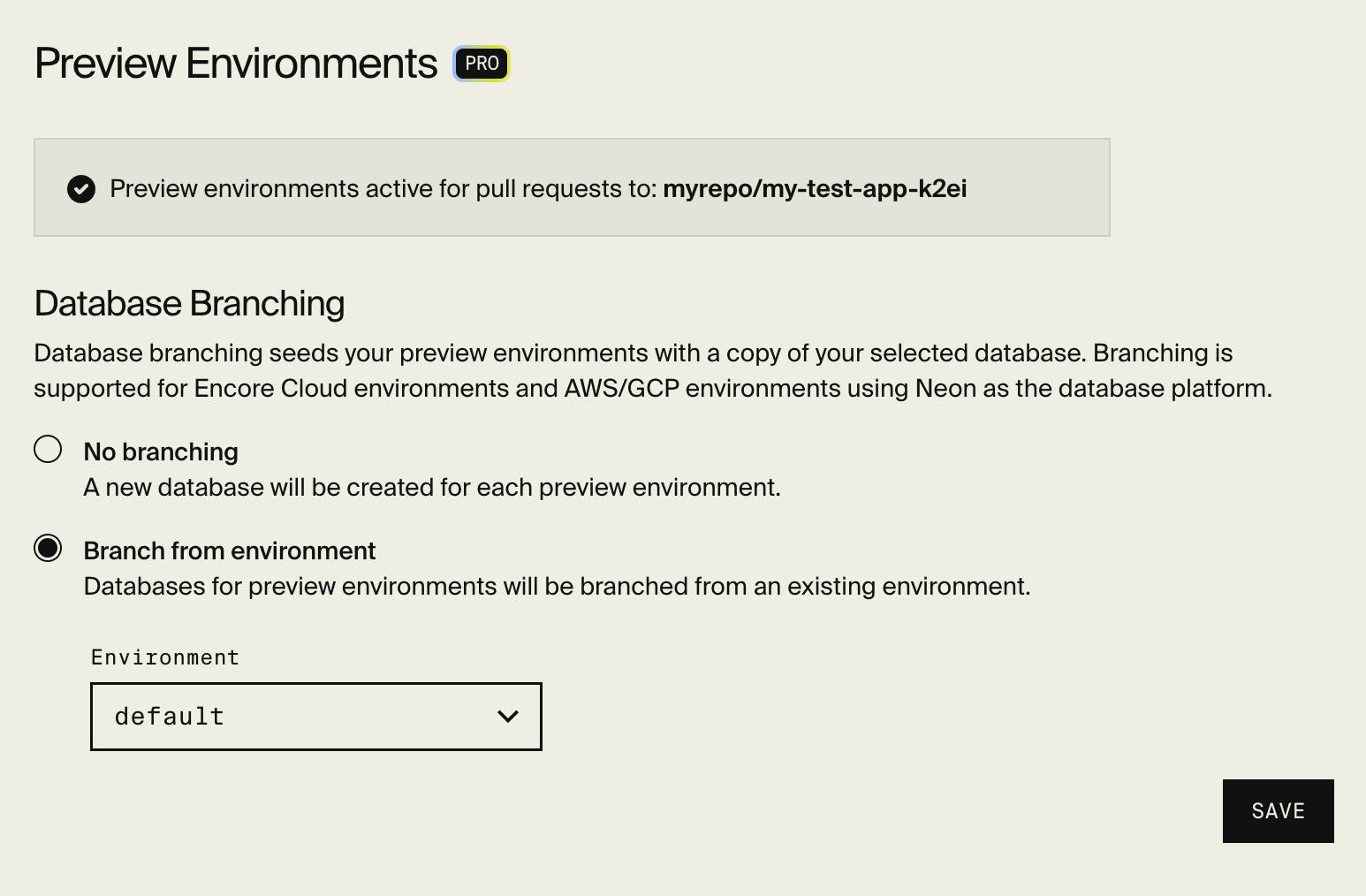
Preview Environments can automatically come with pre-populated test data thanks to Neon's database branching feature. Here's how it works:
1. Your main database (typically in staging) contains your test data
2. When a Preview Environment is created, it gets a fresh database that's an exact copy of your main database
3. This happens automatically - no manual data copying needed!
#### Setup instructions
1. Go to [Encore Cloud dashboard](https://app.encore.cloud)
2. Select your app > App Settings > Preview Environments
3. Choose which environment's database to copy from (e.g., staging)
4. Save your changes
**Note:** This feature requires using Neon as your database provider, which is:
- Default for Encore Cloud environments
- Optional for AWS and GCP environments
 ## Frontend Collaboration
Preview Environments make it really easy to collaborate and test changes with your frontend. Just update your frontend API client to point to the `pr:#` environment.
This is a one-line change since your API client always specifies the environment name, e.g. `https://-.encr.app/`.
If your pull request makes changes to the API, you can [generate a new API client](/docs/ts/cli/client-generation)
for the new backend API using `encore gen client --env=pr:72 --lang=typescript my-app`
## Frontend Collaboration
Preview Environments make it really easy to collaborate and test changes with your frontend. Just update your frontend API client to point to the `pr:#` environment.
This is a one-line change since your API client always specifies the environment name, e.g. `https://-.encr.app/`.
If your pull request makes changes to the API, you can [generate a new API client](/docs/ts/cli/client-generation)
for the new backend API using `encore gen client --env=pr:72 --lang=typescript my-app`