# Connect your cloud account
> Whatever cloud you prefer is fine by us
Encore Cloud lets you deploy your application to any of the major cloud providers, using your own cloud account.
This lets you use Encore to improve your experience and productivity, while keeping the reliability of a major cloud provider.
Each [environment](/docs/platform/deploy/environments) can be configured to use a different cloud provider, and you can have as many environments as you wish.
This also lets you easily deploy a hybrid or multi-cloud application, as you see fit.
Encore Cloud will provision infrastructure in your cloud account, but for safety reasons Encore Cloud does not automatically destroy infrastructure once it's no longer required. To do this, you need to manually approve the deletion of the infrastructure in your Encore Cloud dashboard.
This means if you disconnect your app from your cloud provider, or delete the environment
within Encore, you need to explicitly approve the deletion of the infrastructure in your Encore Cloud dashboard.
## Google Cloud Platform (GCP)
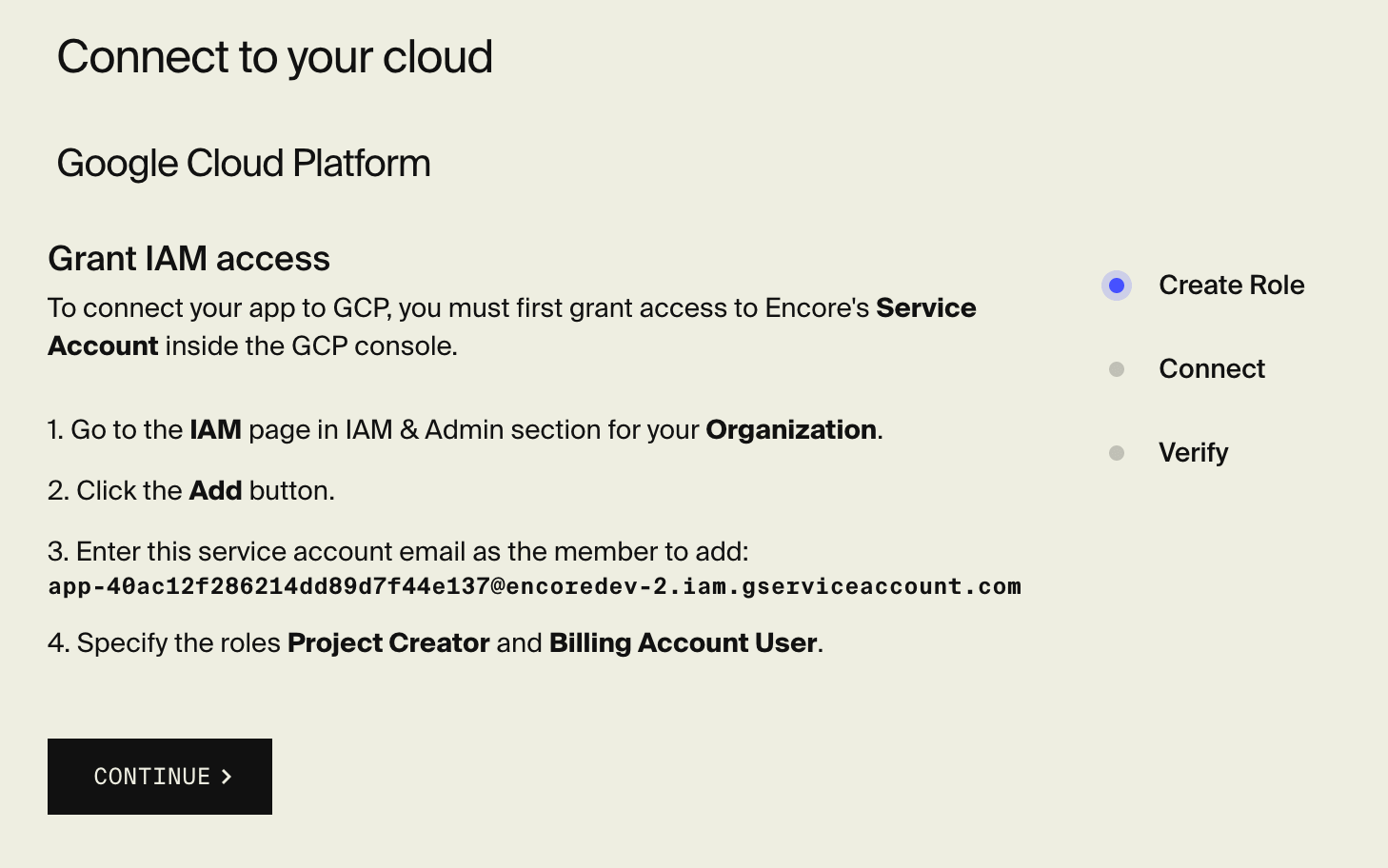
Encore Cloud provides a GCP Service Account for each Encore Cloud application, letting you grant Encore Cloud access to provision all the necessary infrastructure directly in your own GCP account.
### Permissions scoping
GCP's permissions system is well-suited for scoping down Encore Cloud's access. While the simplest setup grants access at the organization level, permissions can also be scoped down to a single GCP project. This is useful when you want to isolate Encore Cloud's access to a specific project within your organization, for example a sandboxed prototyping environment. [Contact us](https://encore.dev/book) to discuss the best setup for your needs.
### Required permissions
When connecting a specific GCP project (instead of granting access at the organization level), the simplest approach is to grant the Encore Cloud service account the `roles/owner` (Owner) role on the project. This gives Encore Cloud full access to provision and manage all the infrastructure it needs.
If you'd prefer to grant more narrowly scoped permissions, only grant the roles for the features your application actually uses. The following project-level roles are grouped by the feature they enable:
#### IAM (always required)
- `roles/resourcemanager.projectIamAdmin` — read/set project IAM policy
- `roles/iam.serviceAccountAdmin` — create/update/delete service accounts
- `roles/iam.roleAdmin` — create/patch/undelete the `encore_bucket_*` custom roles
- `roles/iam.serviceAccountTokenCreator` — needed for Pub/Sub push-OIDC + workload identity flows
- `roles/iam.serviceAccountUser` — needed to deploy Cloud Run services with a custom service account
#### Service usage (always required)
- `roles/serviceusage.serviceUsageAdmin` — enables the required `.googleapis.com` APIs
#### Cloud Run (required if deploying to Cloud Run)
- `roles/run.admin` — create/replace/delete Cloud Run services and their IAM policy
- `roles/vpcaccess.admin` — manage serverless VPC connectors
#### GKE (required if deploying to GKE)
- `roles/container.admin` — clusters, node pools, labels
#### Networking (required for ingress, custom domains, and private connectivity)
- `roles/compute.networkAdmin` — VPC, subnets, firewalls, peering, reserved IPs, PSC forwarding rules
- `roles/compute.loadBalancerAdmin` (or the broader `roles/compute.admin`) — URL maps, target proxies, forwarding rules, backend buckets/services
- `roles/servicenetworking.networksAdmin` — private services access for Cloud SQL / Redis
- `roles/certificatemanager.editor` — certificates, cert maps and entries, DNS authorizations
#### Databases (required if using SQL databases or caches)
- `roles/cloudsql.admin` — instances, users, SSL certs
- `roles/redis.admin` — Memorystore instances
#### Storage (required if using Object Storage)
- `roles/storage.admin` — buckets, CORS, lifecycle, IAM
#### Storage / Registry (always required)
- `roles/artifactregistry.admin` — repositories for container images
#### Messaging (required if using Pub/Sub topics)
- `roles/pubsub.admin` — topics, subscriptions, and their IAM bindings
#### Secrets (always required)
- `roles/secretmanager.admin` — create/version/delete secrets and grant accessor
#### Observability (always required)
- `roles/monitoring.editor` — create/manage custom metric descriptors
### Setup
To find your app's Service Account email and configure GCP deployments, head over to the Connect Cloud page by going to the **[Encore Cloud dashboard](https://app.encore.cloud/) > (Select your app) > App Settings > Integrations > Connect Cloud**.
### Troubleshooting
**I can't access/edit the `Policy for Domain restricted sharing` page**
To edit Organization policies, you need to have the `Organization Policy Administrator` role. If you don't have this role, you can ask your GCP Organization Administrator to grant you the necessary permissions.
If you're a GCP Organization Administrator, you can grant yourself the necessary permissions by following the steps below:
1. Go to the [IAM & Admin page](https://console.cloud.google.com/iam-admin/iam) in the GCP Console.
2. Find your user account in the list of members.
3. Click the pencil icon to edit your user account.
4. Add the `Organization Policy Administrator` role to your user account.
5. Click Save.
**I can't grant access to the Encore Cloud service account**
If you're unable to grant access to the Encore Cloud service account, you may have failed to add Encore Cloud to your `Domain restricted sharing` policy.
Make sure you've followed all the steps in the Connect Cloud page to add Encore Cloud to the policy.
If you're using several GCP accounts, make sure you're logged in with the correct account and that the correct organization is selected in the GCP Console.
**Encore Cloud returns "Could not find Organization ID"**
If you see this error message, it means that Encore Cloud was unable to connect to your GCP Organization. Make sure you've followed all the steps in the Connect Cloud page to grant Encore Cloud access to your GCP Organization.
If you're using several GCP accounts, make sure you're logged in with the correct account and that the correct organization is selected in the GCP Console.
Still having issues? Drop us an email at [support@encore.dev](mailto:support@encore.dev) or chat with us in the [Encore Discord](https://encore.dev/discord.
## Amazon Web Services (AWS)
### Permissions scoping
For a seamless experience, the default setup uses an IAM Role that gives Encore Cloud the permissions needed to provision and manage infrastructure in your AWS account. The simplest way to scope this is to use a dedicated AWS sub-organization for Encore Cloud, which provides clear isolation.
It's also possible to configure a more narrowly scoped IAM policy. The required permissions depend dynamically on the structure of your applications and the infrastructure resources they use. We're actively working on providing more solutions for scoping down permissions further. [Contact us](https://encore.dev/book) to discuss the best setup for your needs.
### Setup
To configure your Encore Cloud app to deploy to your AWS account, head over to the Connect Cloud page by going to the
**[Encore Cloud dashboard](https://app.encore.cloud/) > (Select your app) > App Settings > Integrations > Connect Cloud**.
Follow the instructions to create an IAM Role, and then connect the role with Encore Cloud.
[Learn more in the AWS docs](https://docs.aws.amazon.com/IAM/latest/UserGuide/id_roles_create_for-user.html).
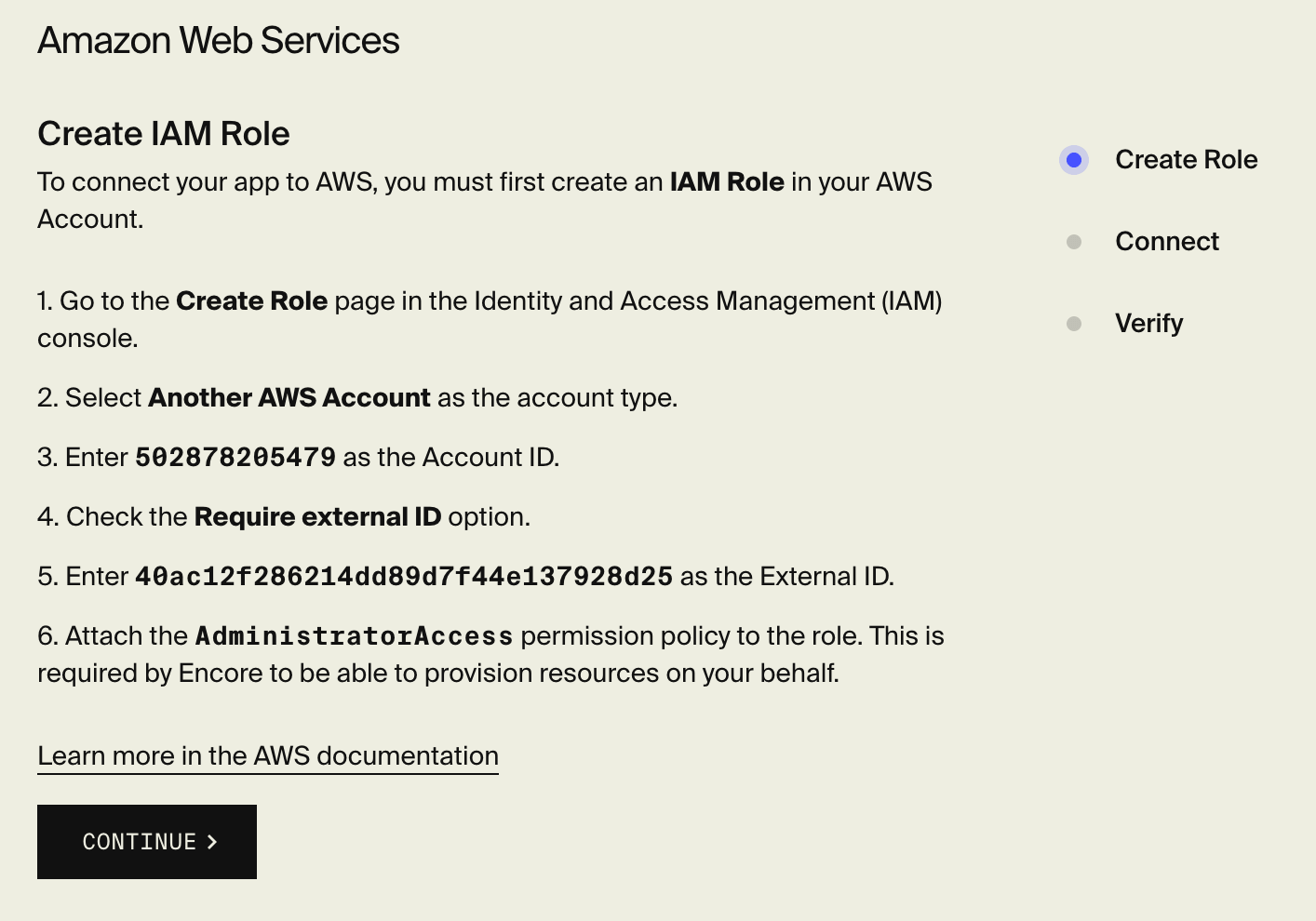
For your security, make sure to check `Require external ID` and specify the
external ID provided in the instructions.
After connecting your app to AWS, you will be asked to choose which region you want Encore Cloud to provision resources in. [Learn more about AWS regions here](https://aws.amazon.com/about-aws/global-infrastructure/regions_az/).